
Getting started3 min

Install the extension and open the side panel

Open the Chrome Web Store from the FolderFetch site, install the extension, and launch its workspace on a page.

What you will achieve

The FolderFetch workspace appears on the right, ready to scan the current page.

Steps

1

Open the installation page

Visit the FolderFetch installation page and follow its official Chrome Web Store link.
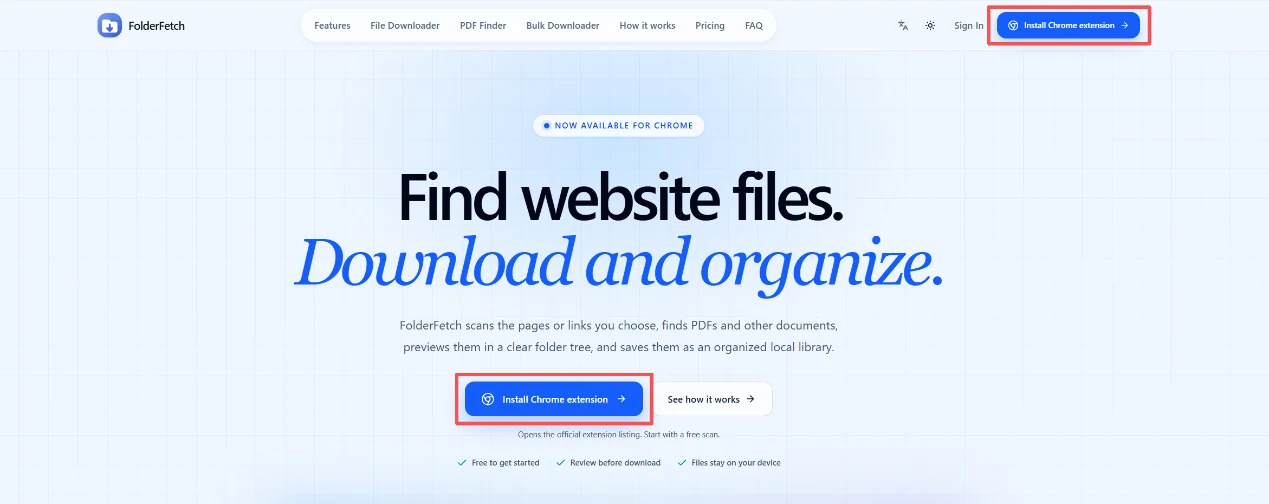
FolderFetch website installation entry
The installation entry on the website.
2

Install from the Chrome Web Store

Confirm that the extension is FolderFetch, choose Add to Chrome, and complete the browser prompt.
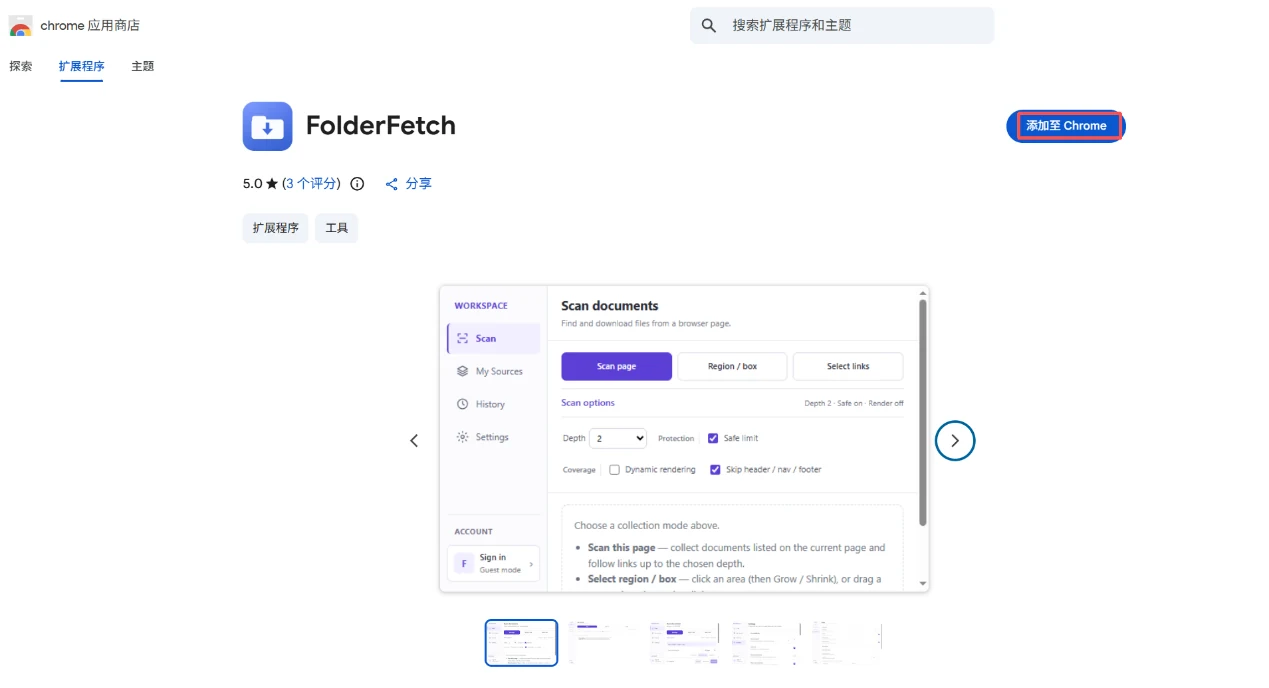
FolderFetch Chrome Web Store listing
Check the extension name before installing.
3

Open your target page

Visit a public page you are allowed to access and click the FolderFetch toolbar icon. If the side panel does not open, click the icon again.
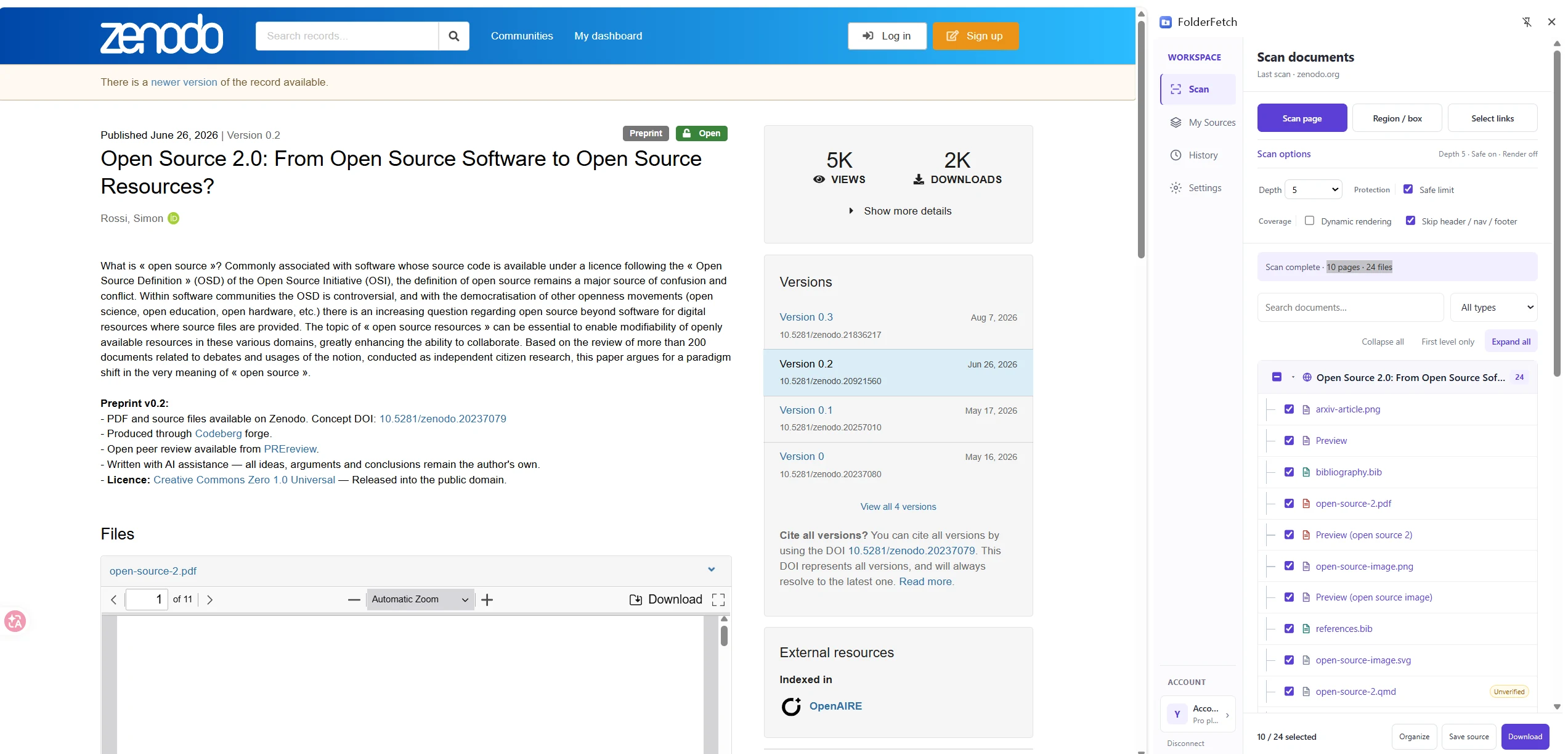
FolderFetch side panel beside a web page
The workspace opens beside the page.